
Printable Wedding QR Code Signs for Guest Photos
Put one photo invitation QR code on each reception sign, with a short line explaining what guests can do. Download a layout below, replace the sample code with your wedding invitation, and scan one printed copy from a seat before running a full batch.
Download a sign that fits your holder
Both layouts have the same 50 mm code area, with room for a headline, two lines of instructions and a short fallback link. Match the outside measurements to your holder and measure the opening, especially for frames that cover the edges.
- A5 (148 × 210 mm) for a larger tabletop holder or an entrance table. Editable A5 sign · A5 sample PDF
- 5 × 7 inches (127 × 177.8 mm) for standard photo frames and smaller tables. Editable 5 × 7 sign · 5 × 7 sample PDF
The sample QR code opens our public wedding guide. It is there to help you check the layout. Replace it and the printed fallback address before putting a sign on a table.
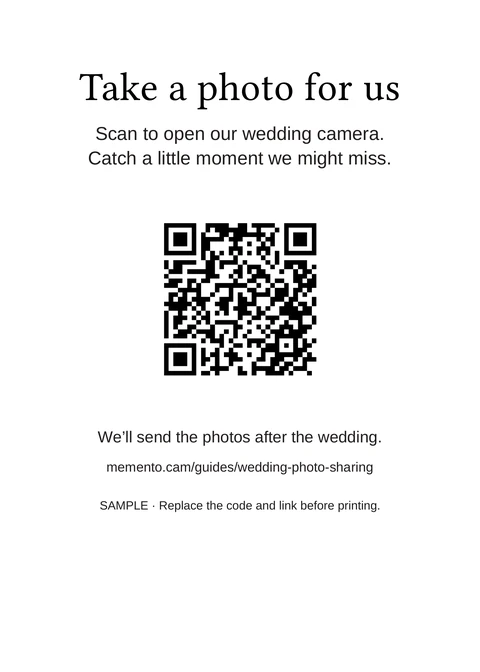
Replace the code and edit the wording
- Open your event as the host and copy the guest invitation. With Memento, use the QR image and link from your Film’s sharing screen. Scan your final sign as a guest so you can confirm it opens the right event.
- Open the editable DOCX in Word or a compatible editor. Replace the square image and keep it centered at 50 mm (about 2 in). Use the original QR image so the small squares stay sharp. A Memento QR download has a narrow white border, so keep the blank white space around the image. This layout leaves at least 8 mm above and below it.
- Rewrite the headline and instructions for your event. Replace the sample address with a short, readable guest link you control, or leave the address off and make the invite available in the group chat. Delete the sample note before printing.
- Export your own PDF, then open it and verify the page dimensions. Print at Actual size or 100% on matte stock. If your printer needs larger paper, trim the proof to fit the holder.
Copy wording that matches your sharing plan
If you plan to share the developed film
Take a photo for us.
Scan to open our wedding camera. Catch a moment we might miss.
We’ll send the photos after the wedding.
If the photos are for the couple
Show us your side of the night.
Scan to take a photo for the two of us.
This film is for the couple.
If you are collecting photos that are already on guests’ phones, a clearer heading is Send photos from your phone. Use the QR code for your tested upload link.
Proof the sign at the reception
- Scan the printed sign while seated where a guest would be, starting around 40–60 cm away if that matches your table. Check iPhone and Android in the actual holder, with the room lighting you expect.
- Check that the entire code fits in the camera view and that the light border stays clear. DENSO WAVE specifies a quiet zone four code squares wide on each side. Keep lettering and decorations outside it.
- If a phone struggles, turn the holder away from reflections, remove glossy plastic, improve lighting or move the sign closer. Use a bigger sign if guests will scan from farther away.
- Tap the invitation, confirm the event name and try the actual guest action. Check mobile data as well as venue Wi-Fi. Send the working clickable link to the coordinator as a backup.
See the DENSO WAVE code sizing guidance, Apple’s scanning steps and Google’s Pixel scanning steps.
Decide how many signs to print
For a reception with eight dinner tables, start with one proof, then print eight table copies and one for the entrance or bar. If candles and flowers block sightlines, move a few signs to a cleared table edge. Put an audio guestbook sign in a quieter spot with a different heading so guests know which to scan.